Helping Pixel Hero Banner Documentation
1. About Helping Pixel - Hero Banner
Building a high-converting homepage or landing page starts with a powerful first impression. Helping Pixel - Hero Banner gives you complete creative freedom to design eye-catching, modern hero sections without writing a single line of code.
Whether you want to showcase high-resolution images, engage visitors with background videos, or drive urgency for launches using a built-in event countdown timer, this Hero Banner has you covered. Built specifically for HubSpot CMS, it allows you to customize every detail—from fonts, colors, and button styles to spacing—directly from the editor interface.
It’s fast, fully responsive, and built to help businesses boost conversions, improve visitor engagement, and launch stunning banner sections in minutes
2. What Makes This Module Special?
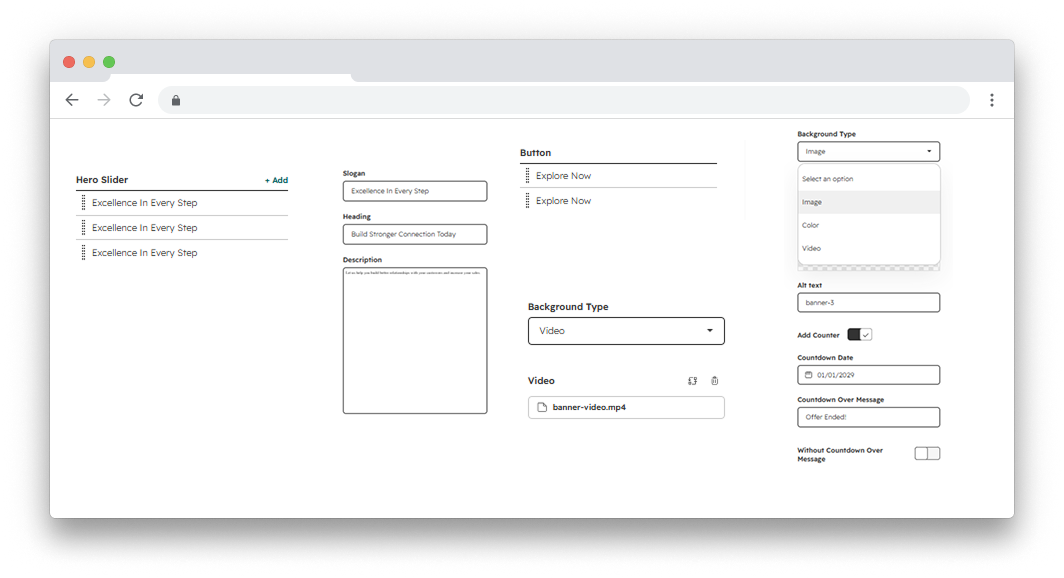
- Multi-Slide Hero Banner: Display multiple slides to highlight key offers and updates, complete with custom heading content, rich descriptions, and dual CTA buttons per slide.
- Dynamic Media & Fill: Switch easily between images, videos, and solid colors.
- Flexible Content Alignment: Position text, headings, and CTA buttons effortlessly across left, center, or right layouts.
- Built-in Event Timer: Drive urgency for launches and webinars with a live countdown.
- Dual Action Buttons: Set up primary and secondary buttons with custom links.
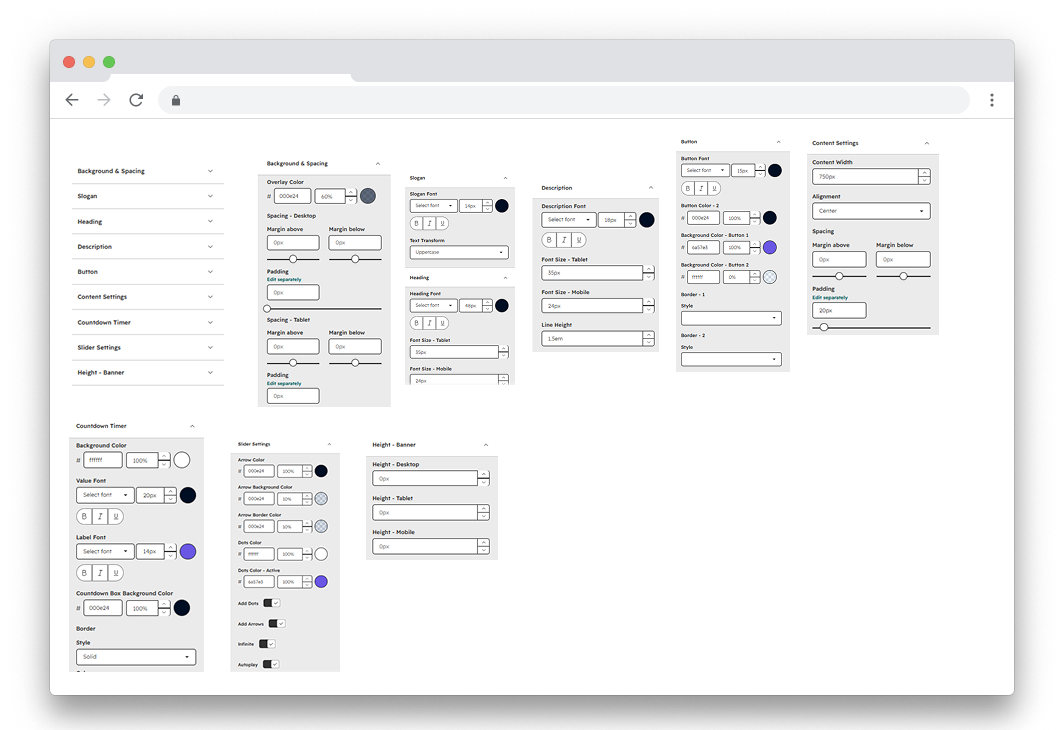
- Complete Style Control: Adjust fonts, colors, overlays, and spacing directly in the editor.
- 100% Responsive: Adapts layout automatically across all screen sizes.
3. Quick Installation Guide
- Log in to your HubSpot account.
- Go to the Marketplace and select Modules.
- Search for
Helping Pixeland select Helping Pixel - Hero Banner. - Click Install to add the module to your portal.
- Open any page editor, drag and drop the module onto your layout, and start customizing.
4. Step-by-Step Setup in HubSpot
- Open Page Editor: Go to Marketing > Website > Website Pages or Landing Pages and open your page.
- Add Module: In the left sidebar (+ Add), search for
Helping Pixel - Hero Bannerand drag it onto your page. - Customize Content & Media: Add your slides, headings, buttons, and choose your background (image, video, or solid color).
- Preview & Publish: Check mobile and desktop views, then click Publish.
5. Editor Controls & Customization
Content Options:
Style & Design Options:
Explore the Module or Get Support
Experience all interactive features on our live preview page, or reach out to our team if you need assistance setting up your hero banner.