Helping Pixel FAQ Pro Documentation
1. About Helping Pixel - FAQ Pro
Helping Pixel - FAQ Pro is a modern, feature-rich help center solution designed for digital platforms. It empowers you to build clean, responsive, and highly customizable FAQ sections with live keyword searching, interactive category tabs, and sleek accordion layouts to deliver seamless user support.
Whether you want to highlight search terms instantly or organize your topics efficiently, you can customize styles, text, and layouts directly inside the HubSpot editor without touching any code.
2. What Makes This Module Special?
- Multiple Visual Styles: Choose from a wide variety of layout styles. Highlight keywords using the live search bar, filter categories with top tabs, or make your answers super clear and visually engaging with emoji icons.
- Live Search & Highlighted Keywords: Lets visitors find answers in seconds using the live search bar that instantly highlights matching query terms.
- Interactive Category Tabs: Organize your support topics neatly with top category filters so users can quickly navigate through different sections.
- Easy No-Code Customization: Change colors, fonts, spacing, and styles directly inside the HubSpot editor without touching any code.
- Fast & Lightweight: Built using clean code so your help center loads fast and looks great on every screen size.
3. Quick Installation Guide
- Log in to your HubSpot account.
- Go to the Marketplace and select Modules.
- Search for
Helping Pixeland select Helping Pixel - FAQ Pro. - Click Install to add the module to your portal.
- Open any page editor, drag and drop the module onto your layout, and start customizing.
4. Step-by-Step Setup in HubSpot
- Open Page Editor: Go to Marketing > Website > Website Pages or Landing Pages and open your page.
- Add Module: In the left sidebar (+ Add), search for Helping Pixel - FAQ Pro
- Customize Content & Media: Add your slides, headings, buttons, and choose your background (image, video, or solid color).
- Preview & Publish: Check mobile and desktop views, then click Publish.
5. Editor Controls & Customization
Content Options:
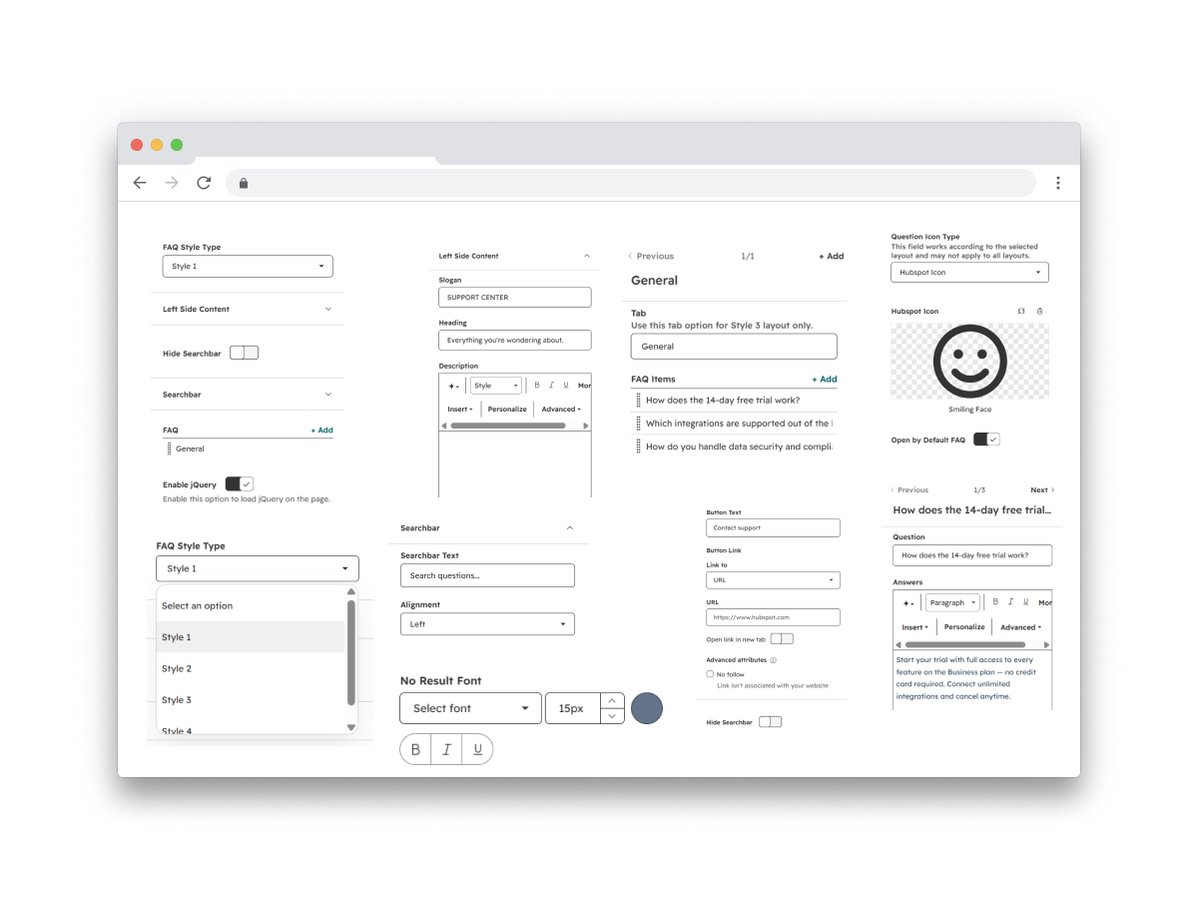
Style & Design Options:
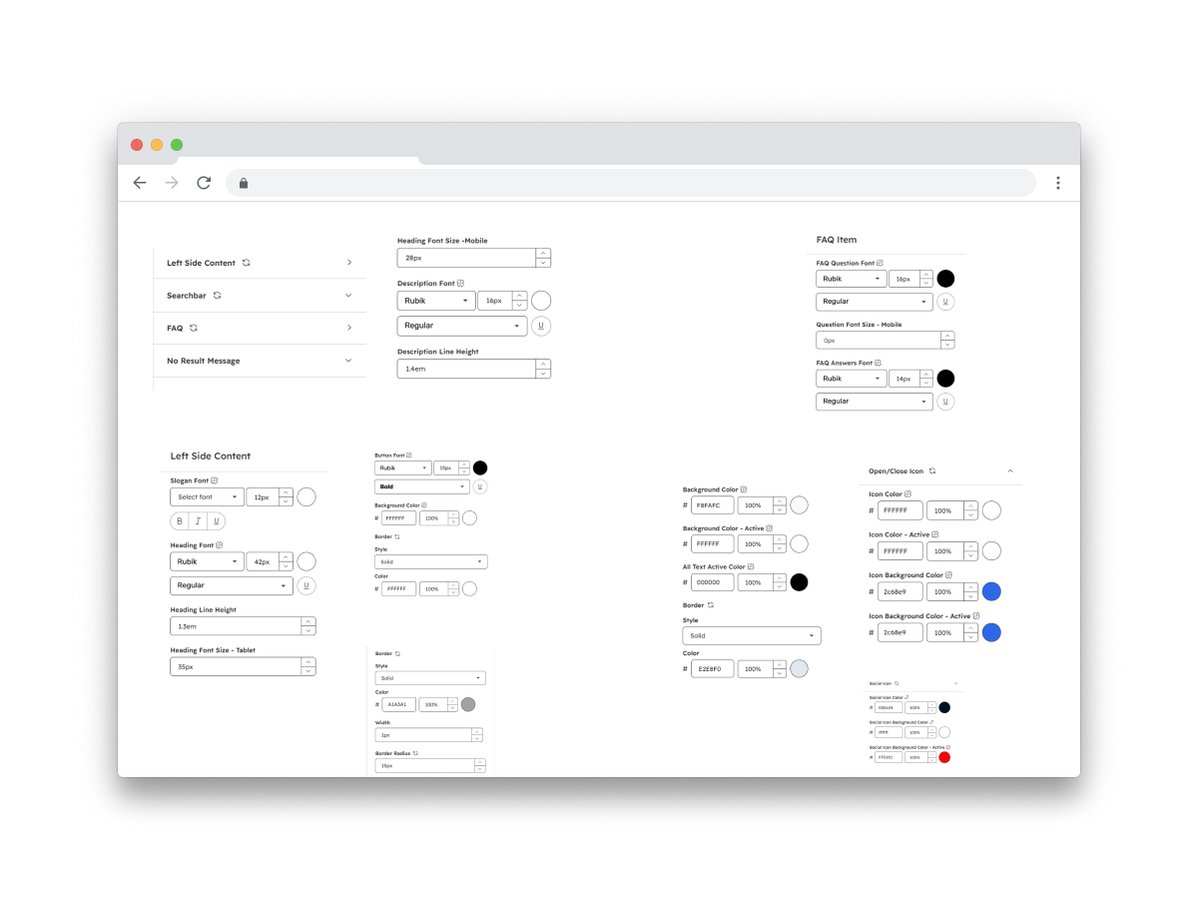
Explore the Module or Get Support
Experience all interactive features on our live preview page, or reach out to our team if you need assistance setting up your hero banner.