Helping Pixel Content Tabs Documentation
1. About Helping Pixel - Content Tabs
Choosing a plan should be easy for your customers. Helping Pixel - Content Tabs helps you display your pricing options clearly so potential buyers can easily compare features and pick the right plan for their needs.
Whether you want to show a clean 2-plan comparison or a detailed feature table with monthly and yearly pricing toggles, tooltips, and organized feature categories, this module gives you total control. You can customize colors, fonts, badges, and button styles directly inside the HubSpot editor without editing any code.
It is lightweight, fully responsive on all screen sizes, and built to help you turn page visitors into paying customers.
2. What Makes This Module Special?
- Editor-First Tab Management: Easily add, reorder, or update tab titles, icons, and rich content directly inside the native HubSpot page editor without touching any code.
- Flexible Layout Orientations: Choose between traditional horizontal (top-aligned) or modern vertical (side-aligned sidebar) layouts to perfectly fit your page design.
- Smart Responsive Transformation: Automatically shifts from standard tabs into clean, accessible accordion dropdowns or stacked layouts on smaller mobile screens.
- Rich Content Support: Showcase rich text, images, icons, and optional call-to-action buttons inside each individual tab panel.
- Lightning Fast & Lightweight: Built with clean, optimized vanilla JavaScript and modular CSS to ensure zero bloat and instant loading speeds.
3. Quick Installation Guide
- Log in to your HubSpot account.
- Go to the Marketplace and select Modules.
- Search for
Helping Pixeland select Helping Pixel - Content Tabs. - Click Install to add the module to your portal.
- Open any page editor, drag and drop the module onto your layout, and start customizing.
4. Step-by-Step Setup in HubSpot
- Open Page Editor: Go to Marketing > Website > Website Pages or Landing Pages and open your page.
- Add Module: In the left sidebar (+ Add), search for
Helping Pixel - Content Tabsand drag it onto your page. - Customize Content & Media: Add your slides, headings, buttons, and choose your background (image, video, or solid color).
- Preview & Publish: Check mobile and desktop views, then click Publish.
5. Editor Controls & Customization
Content Options:
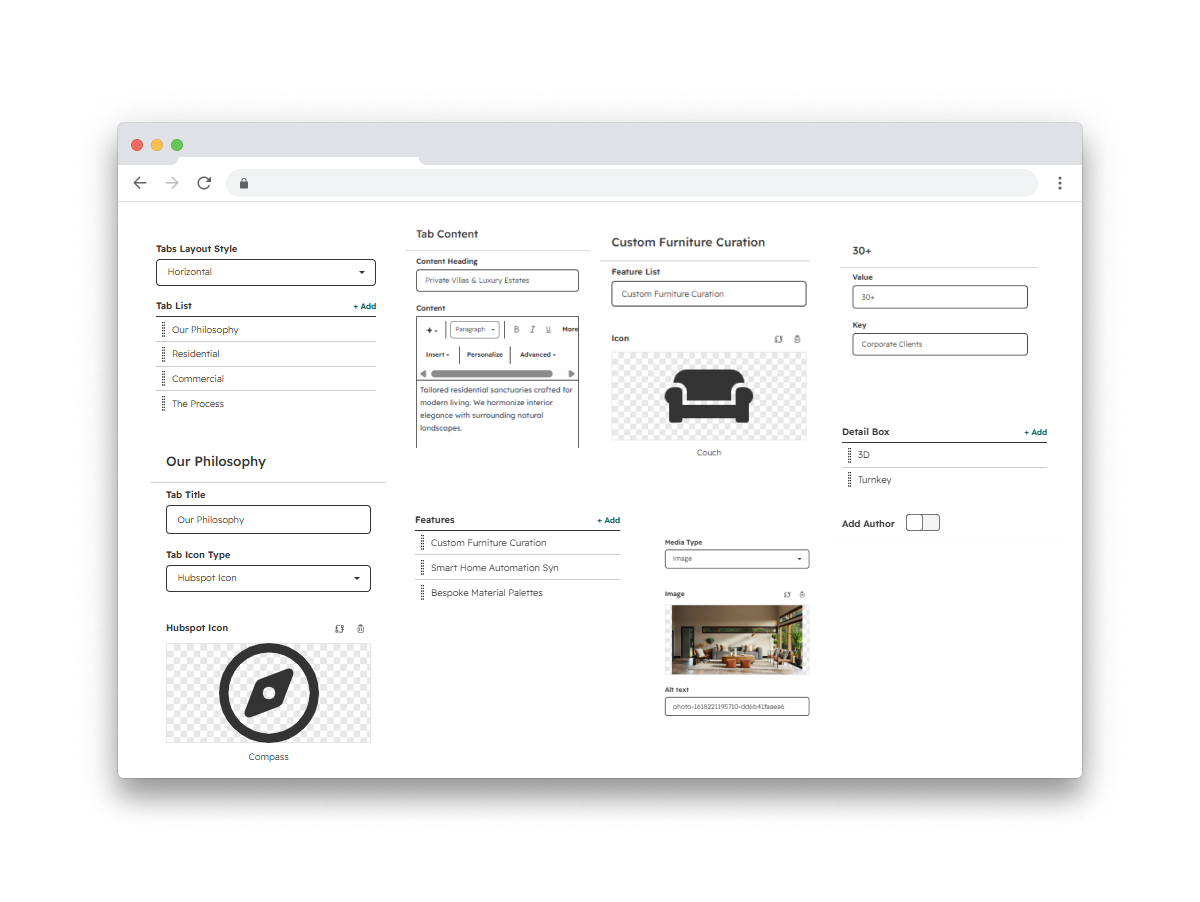
Style & Design Options:
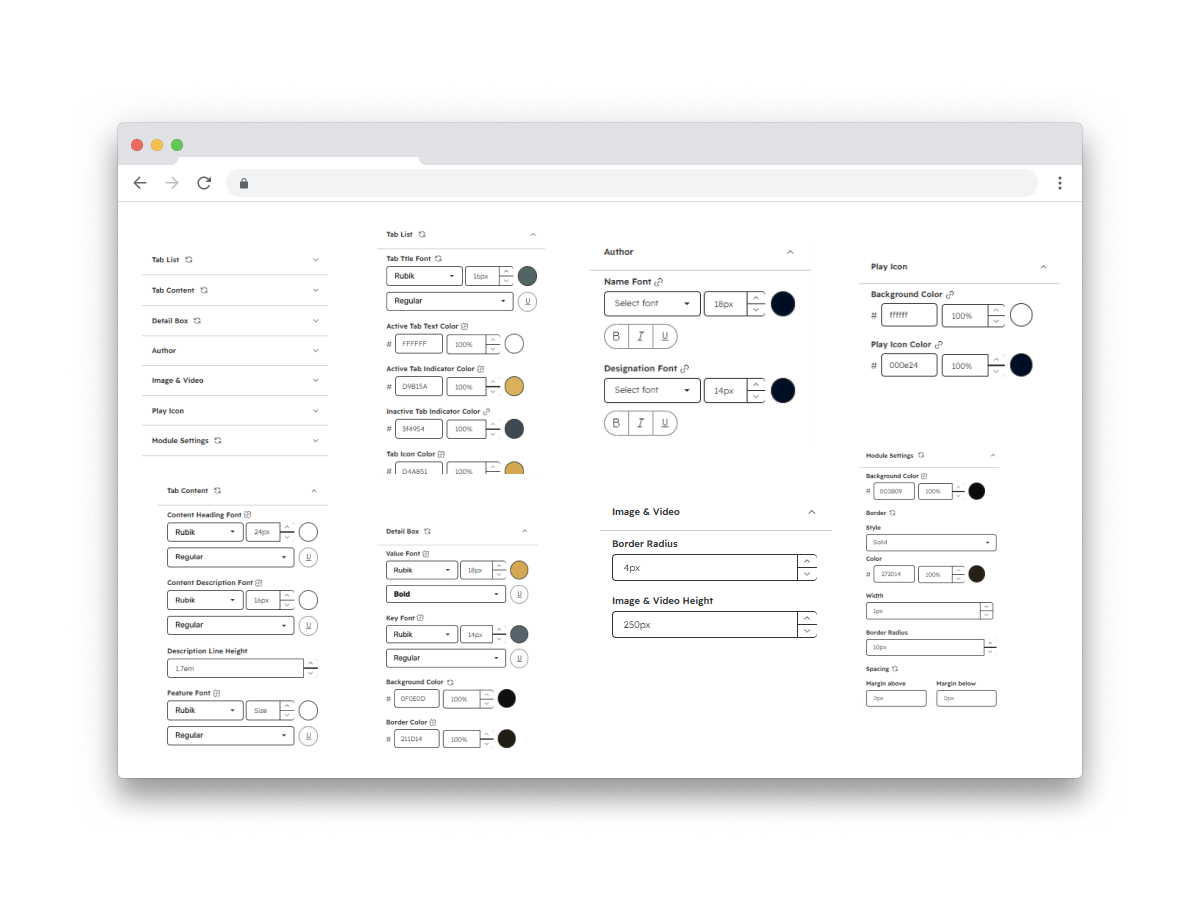
Explore the Module or Get Support
Experience all interactive features on our live preview page, or reach out to our team if you need assistance setting up your hero banner.